

Updating via USB Stick
Click Here to download -> VX3010_20140820.zip
Click Here to download -> VX3020_20140820.zip
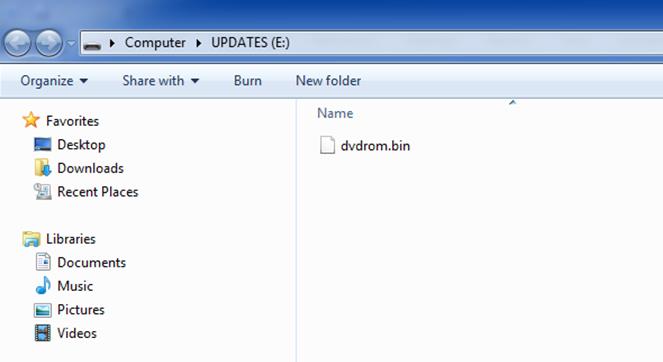
Unzip the software update folder. Place the update files into the ROOT directory of the USB stick. There should be no folders on the USB stick, only the files contained in the “zip” folder. See below image for reference. All files are in the Root Directory of the “E” drive;
Updating the VX3010 / VX3020 Software
Note: When updating
the unit, make certain that power is not interrupted while the update is in progress. If power
is lost or interrupted the unit may become inoperable. Also, before starting the update, turn-off Demo Mode in the
Main Settings Menu.
Power up the unit and insert the USB drive into the front USB port.
Note: This update will only update the MPEG portion of the head unit software.
· After a few moments a menu will pop up and look like the following example:
FIRMWARE UPGRADE
MPEG TFT MCU
·
Press MPEG and the
update will begin. Upgrading MPEG will be shown on the TFT. If you do not press
MPEG to begin the update, the update will automatically begin in 30 seconds. When the update is in process, do not remove or attempt to
turn OFF the unit. If the update begins automatically, let the update complete.
Do not interrupt the update process.
· After the MPEG update, the unit will return to the Firmware Upgrade Menu.
· Remove the USB drive.
· Press the reset button below the volume control.
· Go to the Settings Menu > DVD tab > Version Info > Enter >
· Verify below software version:
Software Version Verification
MPEG Version: v0.74 (After update)
MPEG Date: 140813
MCU Version: v0.54
MCU Date: 20140611
TFT Version: v000.087
· Updates are now complete.
End of Document